1. Introduction to Data Cleaning and Its Importance
2. The Multi-Condition Checker
3. Setting Up Your Data for COUNTIFS
4. Crafting Effective Criteria for COUNTIFS
5. Troubleshooting Common COUNTIFS Errors
6. Advanced COUNTIFS Techniques for Complex Data Sets
7. Integrating COUNTIFS with Other Data Cleaning Functions
Data Cleaning: Data Cleaning with COUNTIFS: The First Step to Pristine Data Analysis
1. Introduction to Data Cleaning and Its Importance
data cleaning is a critical first step in the data analysis process, as it directly impacts the accuracy and reliability of the results. In essence, data cleaning involves the detection and correction (or removal) of errors and inconsistencies in data to improve its quality. The process is not merely about erasing information but rather about identifying, understanding, and amending inaccuracies or anomalies. The importance of data cleaning can be likened to preparing the foundation of a building; just as a strong foundation is essential for the stability of the structure, clean data is crucial for sound analysis.
From a business perspective, clean data is vital for making informed decisions. For instance, a sales manager relying on data with duplicate entries may overestimate the performance of their team, leading to misguided strategies. From a data scientist's viewpoint, working with unclean data can lead to skewed machine learning models, as 'garbage in' inevitably leads to 'garbage out'. Even from a consumer's standpoint, the repercussions of unclean data can be significant, such as receiving incorrect recommendations from a streaming service due to flawed data inputs.
Here are some in-depth insights into the process of data cleaning:
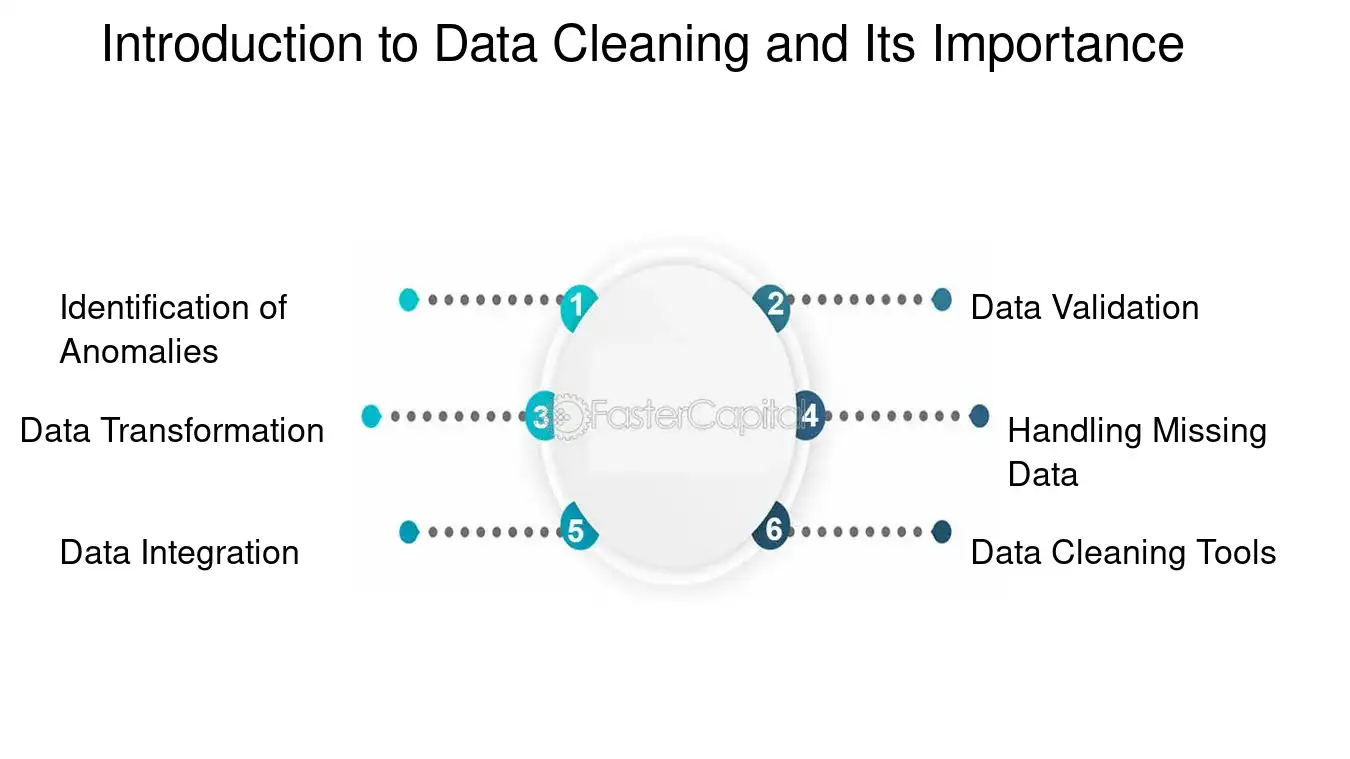
1. Identification of Anomalies: The first step is to identify any irregularities or errors in the dataset. This could be anything from missing values, duplicate records, to incorrect data entries.
- Example: Using a simple function like COUNTIFS in Excel can help identify duplicate entries by counting the number of times a value appears in a dataset.
2. Data Validation: Ensuring that the data meets certain criteria or rules is essential. This could involve range checks, format checks, or consistency checks.
- Example: A dataset of user sign-ups should have valid email addresses; a validation rule can be set to check the format of each entry.
3. Data Transformation: Sometimes, data needs to be transformed or converted into a different format to be consistent with other datasets or to be suitable for analysis.
- Example: Converting date formats from DD/MM/YYYY to MM/DD/YYYY to match the standard used in a particular analytical tool.
4. Handling Missing Data: Deciding how to deal with missing data is crucial. Options include imputation, where missing values are replaced with estimated ones, or deletion, where incomplete records are removed entirely.
- Example: If the age field is missing in a customer dataset, one might use the average age of all customers as an imputed value.
5. Data Integration: When combining datasets from different sources, it's important to ensure that the data is harmonized and consistent.
- Example: When merging customer data from sales support systems, ensuring that customer IDs match and are unique across both systems is essential.
6. Data Cleaning Tools: There are various tools available for data cleaning, ranging from simple spreadsheet functions like COUNTIFS to more sophisticated software designed specifically for data cleansing.
- Example: Tools like OpenRefine or Trifacta can automate many of the data cleaning processes, saving time and reducing human error.
Data cleaning is not just a preliminary step but a continuous process that ensures the integrity of data analysis. It's a blend of art and science, requiring a keen eye for detail and a systematic approach. By employing methods like COUNTIFS for simple tasks or more advanced tools for complex datasets, one can ensure that the data they work with is as pristine as possible, paving the way for accurate and insightful data analysis. Remember, the goal of data cleaning is not just to clean the data but to transform it into a valuable asset that can drive strategic decisions and insights.
Introduction to Data Cleaning and Its Importance - Data Cleaning: Data Cleaning with COUNTIFS: The First Step to Pristine Data Analysis
2. The Multi-Condition Checker
In the realm of data analysis, the cleanliness of data is paramount. One of the most powerful tools at a data analyst's disposal for ensuring data integrity is the COUNTIFS function in spreadsheet software like Microsoft excel. This function is a multi-condition checker that allows analysts to count the number of times specific conditions are met within a range. It's an extension of the COUNTIF function, which only allows for a single condition, providing a much-needed layer of depth for complex data sets.
COUNTIFS is particularly useful in the initial stages of data cleaning, where identifying discrepancies or patterns can guide further cleaning efforts. It's a versatile function that can be applied in various scenarios, such as validating data entry, detecting duplicates, or even analyzing survey data for specific responses.
Here's an in-depth look at how COUNTIFS can be utilized:
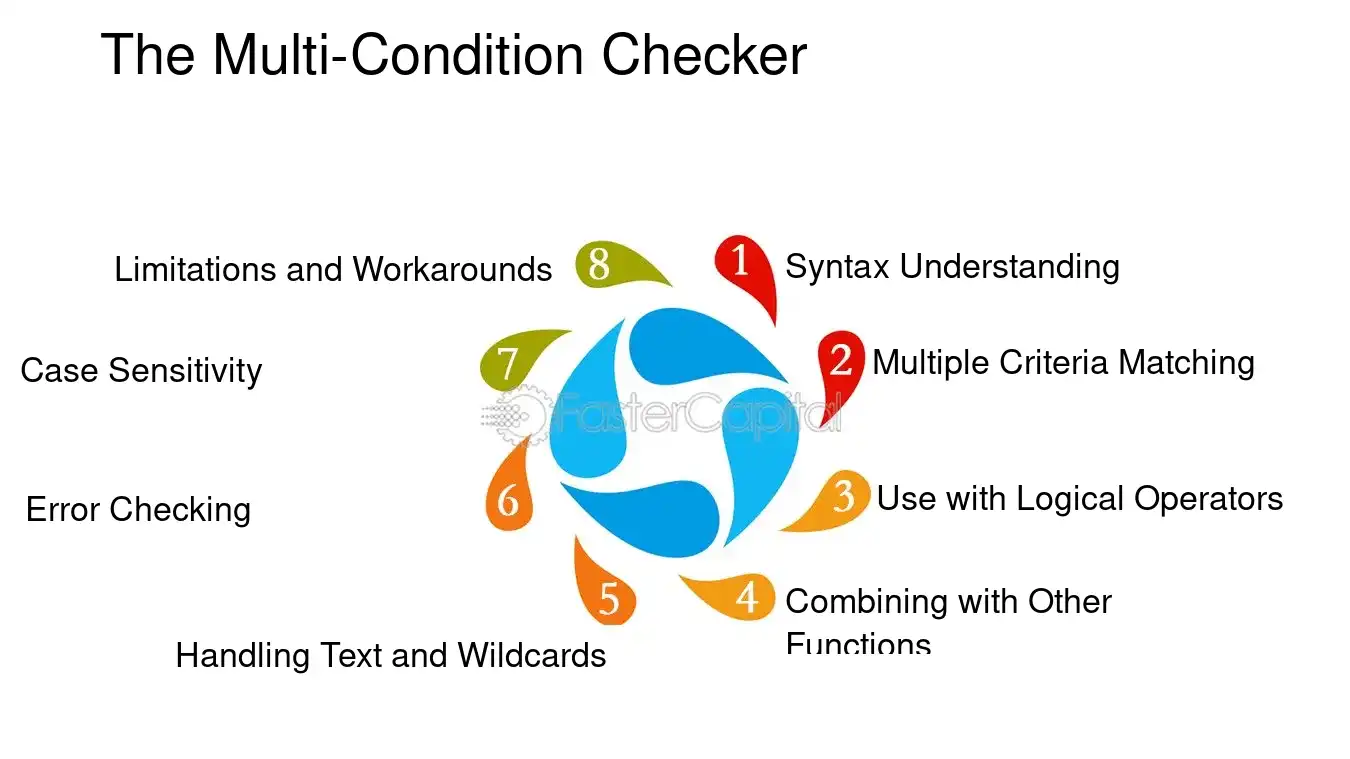
1. Syntax Understanding: The basic syntax of COUNTIFS is `=COUNTIFS(criteria_range1, criteria1, [criteria_range2, criteria2]...)`. This means you can specify multiple ranges and criteria pairs.
2. multiple Criteria matching: Unlike COUNTIF, COUNTIFS can match multiple criteria across different ranges. For example, to count the number of sales in January for Product A, you could use `=COUNTIFS(MonthRange, "January", ProductRange, "Product A")`.
3. Use with Logical Operators: You can include logical operators like `>`, `<`, `>=`, `<=`, and `<>` in your criteria. For instance, to count all entries greater than 100, you would use `=COUNTIFS(DataRange, ">100")`.
4. Combining with Other Functions: COUNTIFS can be combined with other functions for more powerful analysis. For example, using it with SUMIFS can help you sum values that meet certain conditions.
5. Handling Text and Wildcards: COUNTIFS can handle text criteria and wildcards. For example, `=COUNTIFS(NameRange, "John*")` will count all entries that start with "John".
6. error checking: It can be used for error checking by counting non-numeric or text entries in a numeric field.
7. Case Sensitivity: By default, COUNTIFS is not case-sensitive. However, you can make it case-sensitive using additional functions like EXACT in array formulas.
8. Limitations and Workarounds: There are limitations, such as the inability to directly handle arrays or perform case-sensitive counts, but these can often be worked around with creative formula combinations.
To illustrate, let's consider a dataset with two columns: "Salesperson" and "Sales Amount". If we want to count the number of sales above $500 made by "Jane", we could use the following formula:
=COUNTIFS(SalespersonRange, "Jane", SalesAmountRange, ">500")
This would give us a count of all instances where Jane has made a sale exceeding $500, providing a quick insight into her high-value sales performance.
COUNTIFS is an indispensable function for data analysts looking to clean and analyze their data effectively. Its ability to handle multiple conditions simultaneously makes it a go-to tool for preliminary data analysis, setting the stage for more detailed and accurate data insights. Whether you're a seasoned data professional or just starting out, mastering COUNTIFS is a step towards achieving pristine data analysis.
The Multi Condition Checker - Data Cleaning: Data Cleaning with COUNTIFS: The First Step to Pristine Data Analysis
3. Setting Up Your Data for COUNTIFS
Setting up your data for COUNTIFS is a critical step that can make or break the effectiveness of your data cleaning process. This function is a powerful tool in Excel that allows you to count the number of times multiple criteria are met. It's like having a vigilant gatekeeper who ensures that only the data meeting all your specified conditions is considered. To harness the full potential of COUNTIFS, your data must be organized and formatted correctly. This means ensuring that text strings are consistent, dates are in the correct format, and numbers are free from non-numeric characters. It's also essential to have a clear understanding of what you're trying to achieve with your data analysis, as this will guide how you set up your criteria for counting.
From the perspective of a data analyst, setting up data for COUNTIFS involves a keen eye for detail and a strategic approach to data organization. On the other hand, a project manager might view this setup as a foundational step that supports the overall project timeline and data quality objectives. Regardless of your role, the following points will provide in-depth information on how to effectively set up your data for COUNTIFS:
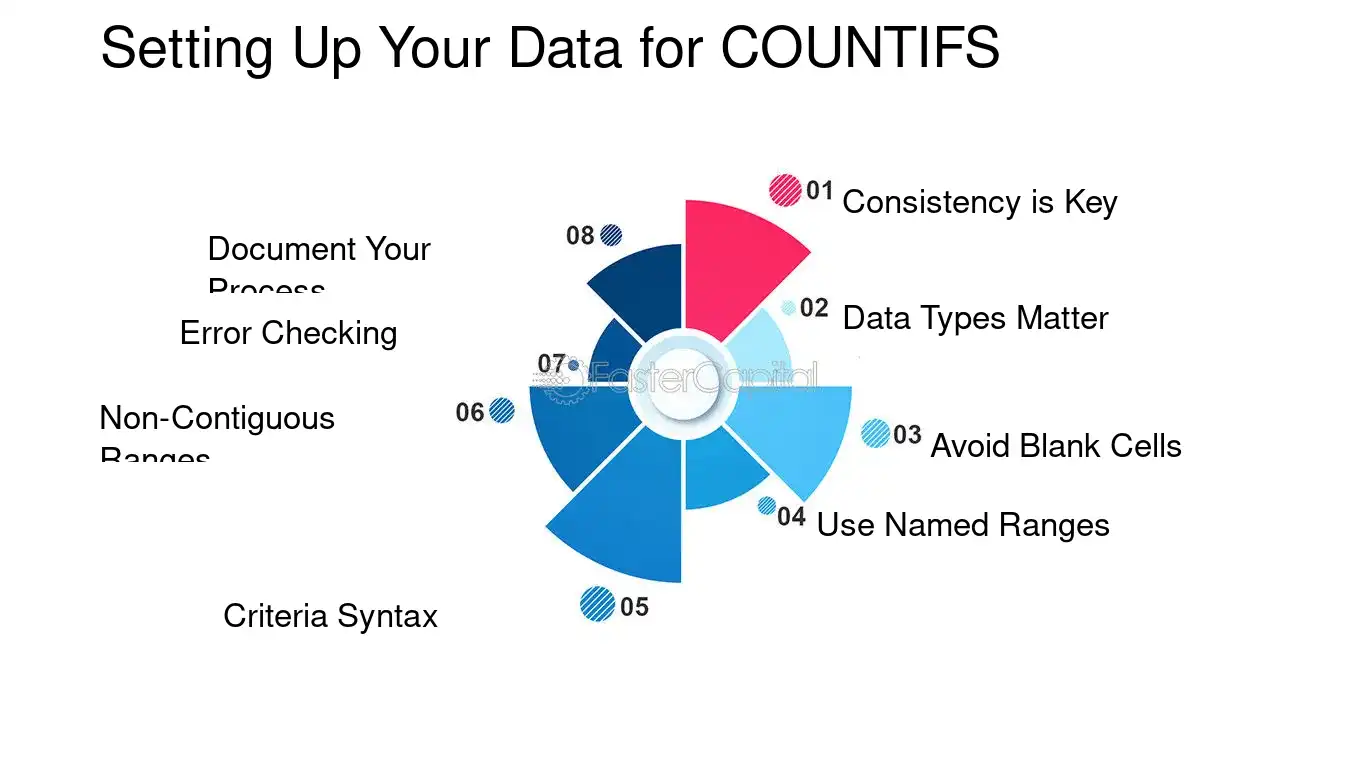
1. Consistency is Key: Ensure that your data is consistent. For example, if you're counting instances of a particular category, make sure that category is spelled the same way throughout your dataset.
2. Data Types Matter: Align your data types. If you're counting based on dates, ensure all your date entries are in a recognizable date format in Excel.
3. Avoid Blank Cells: Blank cells can be counted as zeros or text, depending on your criteria. It's best to clean these up before using COUNTIFS.
4. Use Named Ranges: This can make your formulas easier to read and manage. For instance, instead of using `=COUNTIFS(A1:A10, "criteria")`, you could name A1:A10 as 'DataRange' and use `=COUNTIFS(DataRange, "criteria")`.
5. Criteria Syntax: Understand the syntax for criteria. For text, you can use wildcards like `*` for multiple characters or `?` for a single character. For numbers, you can use `>` for greater than, `<` for less than, etc.
6. Non-Contiguous Ranges: COUNTIFS typically requires a single range, but you can count across multiple non-contiguous ranges by using multiple COUNTIFS and adding the results.
7. Error Checking: Use Excel's error checking features to ensure there are no errors in your data that could affect the count.
8. Document Your Process: Keep a record of the criteria you've used and why. This is especially important in collaborative environments.
Here's an example to highlight the importance of consistency in criteria. Suppose you have a list of customer feedback forms and you want to count how many customers mentioned 'delivery' issues. If some forms use 'delivery', others use 'Delivery', and some use 'delivered', your COUNTIFS formula needs to account for these variations. You could use a formula like `=COUNTIFS(FeedbackRange, "delivery") + COUNTIFS(FeedbackRange, "Delivery") + COUNTIFS(FeedbackRange, "delivered")` to ensure all relevant entries are counted.
By following these steps and keeping these insights in mind, you'll be well on your way to setting up your data for COUNTIFS and, consequently, cleaner, more accurate data analysis. Remember, the goal is to create a dataset that's not only clean but also primed for insightful analysis that can drive informed decision-making.
Setting Up Your Data for COUNTIFS - Data Cleaning: Data Cleaning with COUNTIFS: The First Step to Pristine Data Analysis
4. Crafting Effective Criteria for COUNTIFS
Crafting effective criteria for COUNTIFS is a pivotal step in ensuring that your data cleaning process leads to pristine data analysis. This function is a powerhouse in Excel, allowing you to count the number of cells that meet multiple criteria across different ranges. It's like having a vigilant gatekeeper that ensures only the data meeting your specific standards is considered. From a data analyst's perspective, COUNTIFS is indispensable for preliminary data assessment and cleaning. It helps in identifying outliers, inconsistencies, and patterns that require attention before delving deeper into analysis.
Let's explore the intricacies of COUNTIFS with a multi-faceted approach:
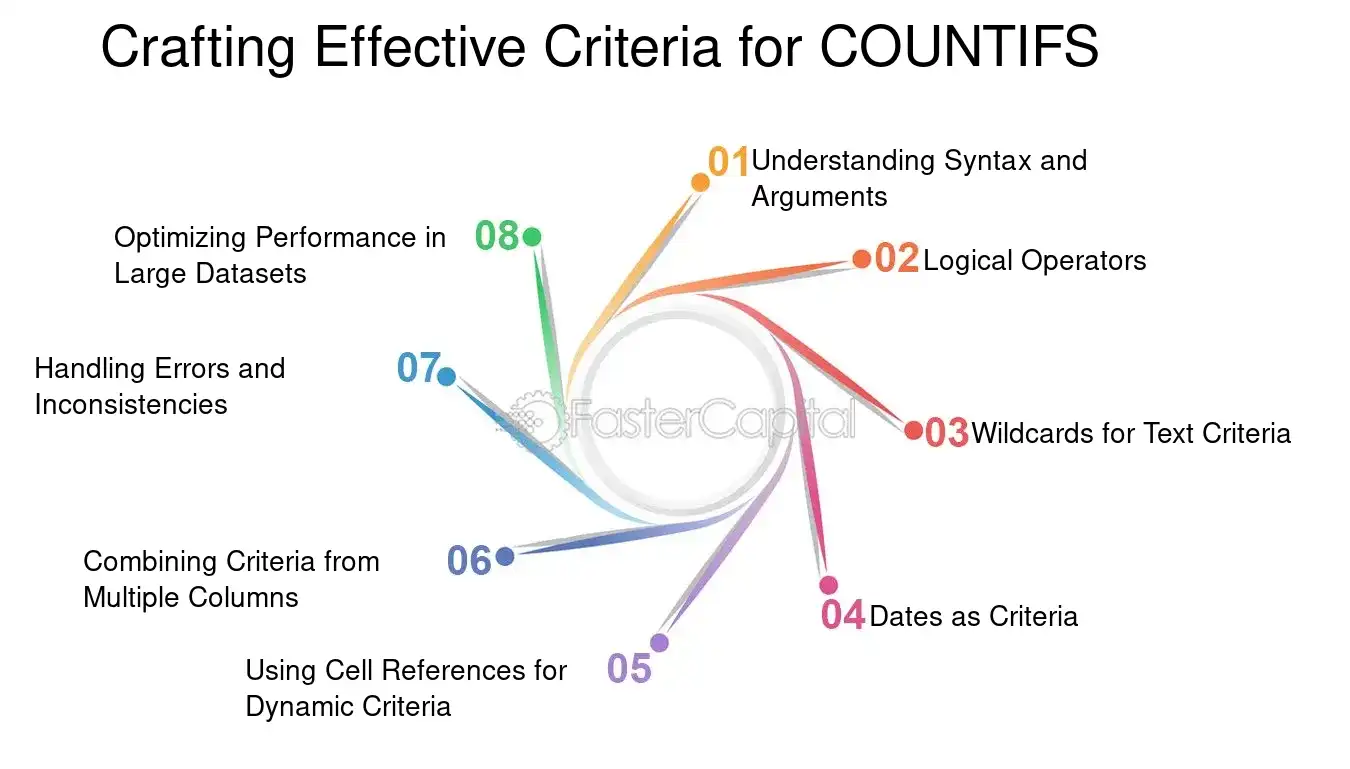
1. Understanding Syntax and Arguments: The basic syntax for COUNTIFS is `=COUNTIFS(criteria_range1, criteria1, [criteria_range2, criteria2]...)`. Each 'criteria_range' corresponds to a set of cells you want to evaluate, and 'criteria' defines the condition that must be met. For instance, to count the number of sales transactions in a dataset that exceed $500 and occurred in Q1, you would use: `=COUNTIFS(Sales_Amount, ">500", Sales_Quarter, "Q1")`.
2. Logical Operators: COUNTIFS supports logical operators such as `>`, `<`, `>=`, `<=`, `<>` (not equal to), and `=`. These can be used to create conditions such as counting all entries greater than a certain value or excluding specific values.
3. Wildcards for Text Criteria: When dealing with text, wildcards can be your best ally. The asterisk `` represents any number of characters, and the question mark `?` represents a single character. For example, `=COUNTIFS(Employee_Names, "John")` will count all cells that start with 'John' regardless of what follows.
4. Dates as Criteria: COUNTIFS can be particularly useful when you need to count occurrences within a specific date range. Dates should be provided in quotation marks and in a recognizable date format for Excel, like `=COUNTIFS(Sales_Date, ">=1/1/2021", Sales_Date, "<=12/31/2021")` to count all sales in the year 2021.
5. Using cell References for dynamic Criteria: Instead of hardcoding criteria, you can reference other cells which contain the criteria values. This makes your COUNTIFS dynamic and adaptable to changing conditions without needing to edit the formula itself.
6. Combining Criteria from Multiple Columns: You can count rows that meet criteria across multiple columns, which is akin to applying multiple filters to your data. For example, `=COUNTIFS(Region, "East", Product, "Widget", Sales_Amount, ">1000")` will count all East region widget sales over $1000.
7. Handling Errors and Inconsistencies: Sometimes, datasets contain errors or inconsistencies that can skew your COUNTIFS results. Using functions like IFERROR in conjunction with COUNTIFS can help manage these issues.
8. Optimizing Performance in Large Datasets: In datasets with thousands of rows, COUNTIFS can become slow. To optimize performance, limit the range to the necessary rows and consider using helper columns that pre-calculate certain conditions.
By integrating these insights into your COUNTIFS criteria crafting, you can ensure that your data cleaning efforts are robust and effective, paving the way for insightful data analysis. Remember, the goal is to create a set of conditions that are both comprehensive and precise, allowing you to sift through the data with the finesse of a skilled artisan, leaving you with only the most relevant and accurate data for your analysis.
Crafting Effective Criteria for COUNTIFS - Data Cleaning: Data Cleaning with COUNTIFS: The First Step to Pristine Data Analysis
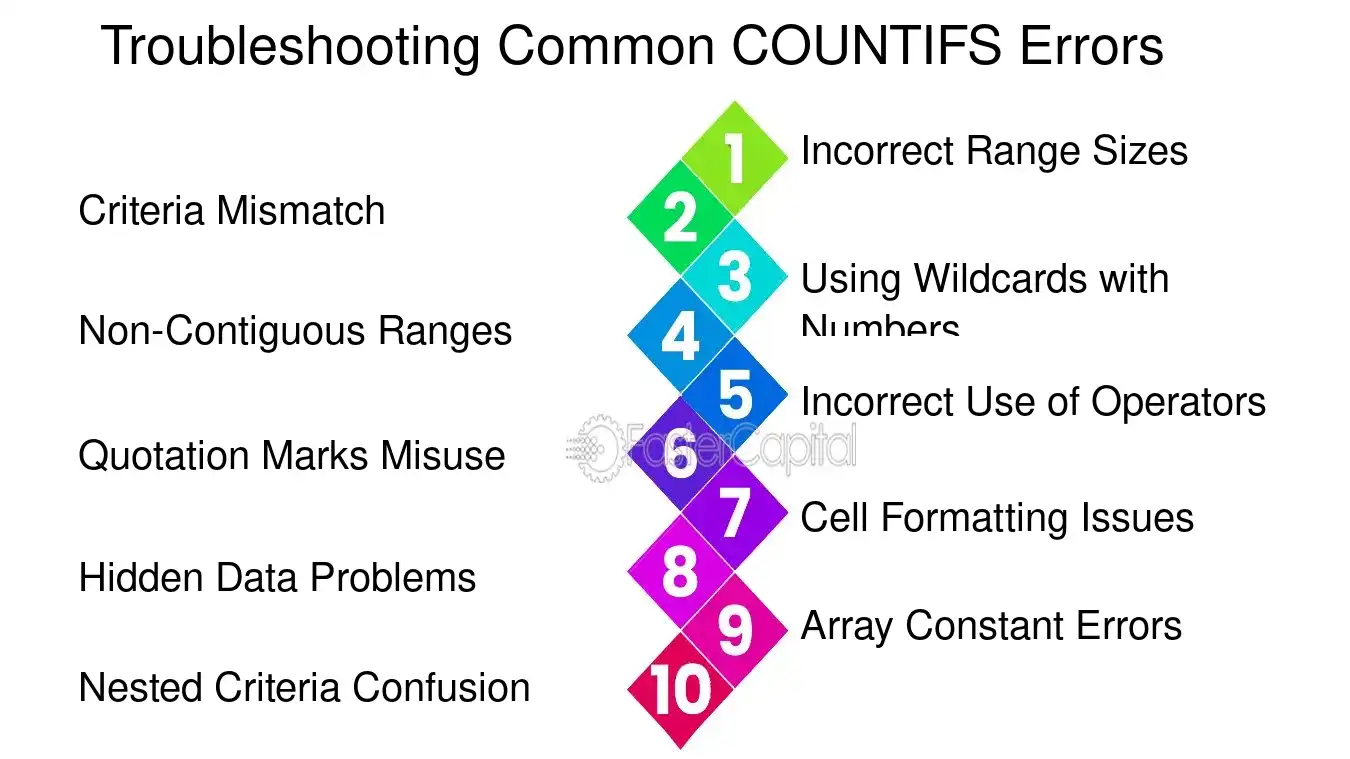
5. Troubleshooting Common COUNTIFS Errors
Troubleshooting common errors in COUNTIFS is a critical step in ensuring the accuracy of data analysis. This function, designed to count the number of cells that meet multiple criteria, is a powerful tool for data cleaning and preparation. However, it's not uncommon to encounter issues that can lead to incorrect counts, which in turn can skew the results of your data analysis. Understanding these errors from different perspectives – whether you're a beginner or an advanced user, working with simple datasets or complex ones – is essential for maintaining the integrity of your data.
Here are some common COUNTIFS errors and how to resolve them:
1. Incorrect Range Sizes: The ranges in COUNTIFS must be the same size. If they're not, Excel will return an error.
- Example: `=COUNTIFS(A1:A10, "Apple", B1:B20, ">10")` will result in an error because the ranges A1:A10 and B1:B20 are not the same size.
2. Criteria Mismatch: The criteria should match the data type of the range.
- Example: If you're counting numbers, ensure your criteria is not inadvertently formatted as text.
3. Using Wildcards with Numbers: Wildcards like `*` and `?` are for text criteria. They won't work with numbers.
- Example: `=COUNTIFS(A1:A10, "*5")` will not count numbers ending in 5.
4. Non-Contiguous Ranges: COUNTIFS requires contiguous ranges. If you need to count across separate ranges, consider using SUM(COUNTIFS(...)) for each range.
- Example: `=SUM(COUNTIFS(A1:A10, "Apple"), COUNTIFS(C1:C10, "Apple"))` for non-adjacent columns A and C.
5. Incorrect Use of Operators: Make sure operators like `>`, `<`, `>=`, `<=` are used correctly.
- Example: `=COUNTIFS(A1:A10, ">=10")` counts cells greater than or equal to 10.
6. Quotation Marks Misuse: When using logical operators, ensure they are inside quotation marks with the criteria.
- Example: `=COUNTIFS(A1:A10, ">=&10")` is incorrect. It should be `=COUNTIFS(A1:A10, ">=10")`.
7. Cell Formatting Issues: Sometimes, cells may look like numbers but are actually formatted as text, or vice versa.
- Example: A cell containing '001' may be treated as text, not a number.
8. Hidden Data Problems: Filters or hidden rows can affect COUNTIFS if not accounted for.
- Example: If rows are hidden, COUNTIFS will still count them, which might not be the desired outcome.
9. Array Constant Errors: When using array constants, ensure they are used correctly.
- Example: `=COUNTIFS(A1:A10, {"Apple","Orange"})` counts the number of cells that are either "Apple" or "Orange".
10. Nested Criteria Confusion: For complex criteria, ensure that the logic is nested correctly.
- Example: `=COUNTIFS(A1:A10, "Apple", A1:A10, "Orange")` will always return 0 because a cell cannot be both "Apple" and "Orange".
By keeping these points in mind and applying them to your data cleaning process, you can avoid common pitfalls and ensure that your COUNTIFS function works seamlessly, paving the way for pristine data analysis. Remember, the devil is in the details, and a keen eye for these nuances can make all the difference in your data-driven endeavors.
Troubleshooting Common COUNTIFS Errors - Data Cleaning: Data Cleaning with COUNTIFS: The First Step to Pristine Data Analysis
6. Advanced COUNTIFS Techniques for Complex Data Sets
Diving deeper into the realm of data cleaning, one cannot overlook the power of COUNTIFS, especially when dealing with complex data sets. This function is a cornerstone in the foundation of pristine data analysis, as it allows for multi-condition counting, which is essential when sifting through layers of data to extract meaningful insights. The beauty of COUNTIFS lies in its ability to accommodate multiple criteria across different ranges, making it an indispensable tool for analysts who are often tasked with the challenge of making sense of vast and varied data.
From the perspective of a data analyst, COUNTIFS is akin to a swiss Army knife. It's not just about counting cells that meet a certain criterion; it's about understanding the story the data tells when those counts are segmented, compared, and analyzed. For instance, consider a sales dataset with thousands of entries. An analyst might use COUNTIFS to determine the number of sales in a particular region that exceeded a certain amount during a specific time frame. This is a straightforward example, but the true potential of COUNTIFS is realized when these conditions start to multiply and the data sets become more intricate.
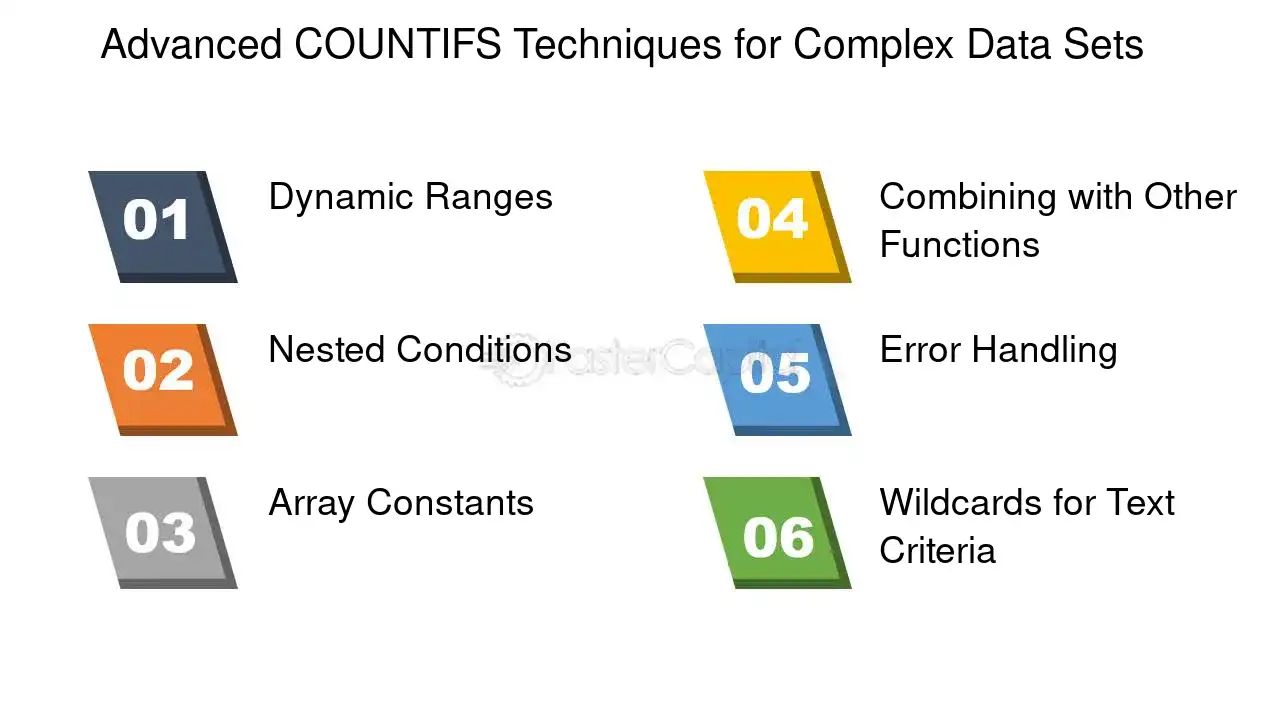
Here are some advanced techniques that can elevate the use of COUNTIFS in data cleaning and analysis:
1. Dynamic Ranges: Instead of static ranges, use named ranges or table references that adjust as your data grows. This ensures that your COUNTIFS formulas remain accurate and up-to-date without manual adjustments.
2. Nested Conditions: For more complex criteria, nest multiple COUNTIFS functions to create compound conditions that can filter data in multiple stages, allowing for a granular level of analysis.
3. Array Constants: Utilize array constants within your COUNTIFS to check against multiple criteria in one go. This is particularly useful when you need to match several possible values for a single criterion.
4. Combining with Other Functions: Pair COUNTIFS with functions like SUMIFS or AVERAGEIFS to not only count occurrences but also to perform calculations on the filtered data, providing a more comprehensive view of the dataset.
5. Error Handling: Incorporate IFERROR with your COUNTIFS to handle potential errors gracefully, ensuring that your data cleaning process doesn't halt due to unforeseen issues.
6. Wildcards for Text Criteria: Use wildcards like asterisks (*) and question marks (?) within your text criteria to count cells that match certain patterns, which is invaluable when dealing with text-heavy data.
For example, let's say you have a dataset of customer feedback and you want to count how many times a specific product is mentioned positively. You could set up a COUNTIFS formula like this:
```excel
=COUNTIFS(feedback_range, "great", product_range, "Product A")
This formula would count all instances where "Product A" is mentioned alongside the word "great" within the feedback. It's a simple yet powerful way to extract specific information from qualitative data.
By mastering these advanced COUNTIFS techniques, you can transform a mundane data cleaning task into a strategic analysis tool, unlocking the full potential of your data and paving the way for insightful, data-driven decisions. Remember, the goal is not just to clean the data but to prepare it for a journey where every number, every count, tells a part of a larger story.
Advanced COUNTIFS Techniques for Complex Data Sets - Data Cleaning: Data Cleaning with COUNTIFS: The First Step to Pristine Data Analysis
7. Integrating COUNTIFS with Other Data Cleaning Functions
Integrating the COUNTIFS function with other data cleaning functions is a powerful approach to ensure that your data analysis starts on the right foot. COUNTIFS, by itself, is a robust tool for counting cells that meet multiple criteria, but its true potential is unleashed when combined with other functions that address different aspects of data cleanliness. This multifaceted approach not only streamlines the data cleaning process but also enhances the accuracy and reliability of your data analysis. By considering various perspectives, from the meticulous data analyst to the strategic business decision-maker, we can appreciate the versatility and necessity of integrating COUNTIFS within a broader data cleaning framework.
1. Combining with TRIM and PROPER: Often, datasets contain inconsistencies in text formatting, such as leading/trailing spaces or improper capitalization. Using TRIM in conjunction with COUNTIFS helps identify these discrepancies by normalizing the text format. For instance, `=COUNTIFS(A2:A100, TRIM(PROPER(B2)))` would count the number of entries in `A2:A100` that match the properly capitalized and trimmed version of the text in `B2`.
2. Linking with IFERROR: Data can have errors or formulas that do not compute as expected. Wrapping COUNTIFS with IFERROR ensures that any errors in the criteria range are handled gracefully, preventing misleading counts. For example, `=IFERROR(COUNTIFS(A2:A100, ">0"), "Error in Data")` would return an error message instead of an inaccurate count if there are errors within the range.
3. Utilizing with data validation: data validation rules can be reinforced using COUNTIFS to ensure that only expected values are entered. For example, if you have a list of categories that should not repeat, `=COUNTIFS(A2:A100, A2)` entered as a custom data validation rule would prevent duplicate entries in the specified range.
4. integrating with Conditional formatting: To visually highlight anomalies or patterns in data, COUNTIFS can be used within conditional formatting rules. For example, to highlight cells where the count of a particular value exceeds a threshold, you could use a formula like `=COUNTIFS(A2:A100, A2)>5` within the conditional formatting rule manager.
5. Pairing with SUBSTITUTE: In cases where data entries might have variations in spelling or use of special characters, SUBSTITUTE can be used with COUNTIFS to standardize and count these entries. For instance, `=COUNTIFS(A2:A100, SUBSTITUTE(A2, "-", ""))` would count entries that match the value in `A2` but without hyphens.
By employing these integrations, data analysts can create a more robust and error-resistant environment for data cleaning, which is crucial for subsequent data analysis stages. The examples provided illustrate how COUNTIFS can serve as a central function that, when combined with other functions, addresses a wide array of data cleaning challenges, ensuring that the data you work with is as pristine as possible. This holistic approach to data cleaning with COUNTIFS is not just about achieving cleaner data; it's about building a foundation for insights that drive informed decisions and strategies.

Integrating COUNTIFS with Other Data Cleaning Functions - Data Cleaning: Data Cleaning with COUNTIFS: The First Step to Pristine Data Analysis
8. Real-World Applications of COUNTIFS
In the realm of data analysis, the COUNTIFS function stands as a versatile and powerful tool, particularly when it comes to the meticulous task of data cleaning. This function's ability to count the frequency of occurrences across datasets based on multiple criteria makes it an indispensable ally in the quest for pristine data. By employing COUNTIFS, analysts can swiftly identify inconsistencies, detect outliers, and ensure that datasets meet the required standards for quality and accuracy. The real-world applications of COUNTIFS are as diverse as the fields that rely on data analysis, ranging from finance to healthcare, and from marketing to education.
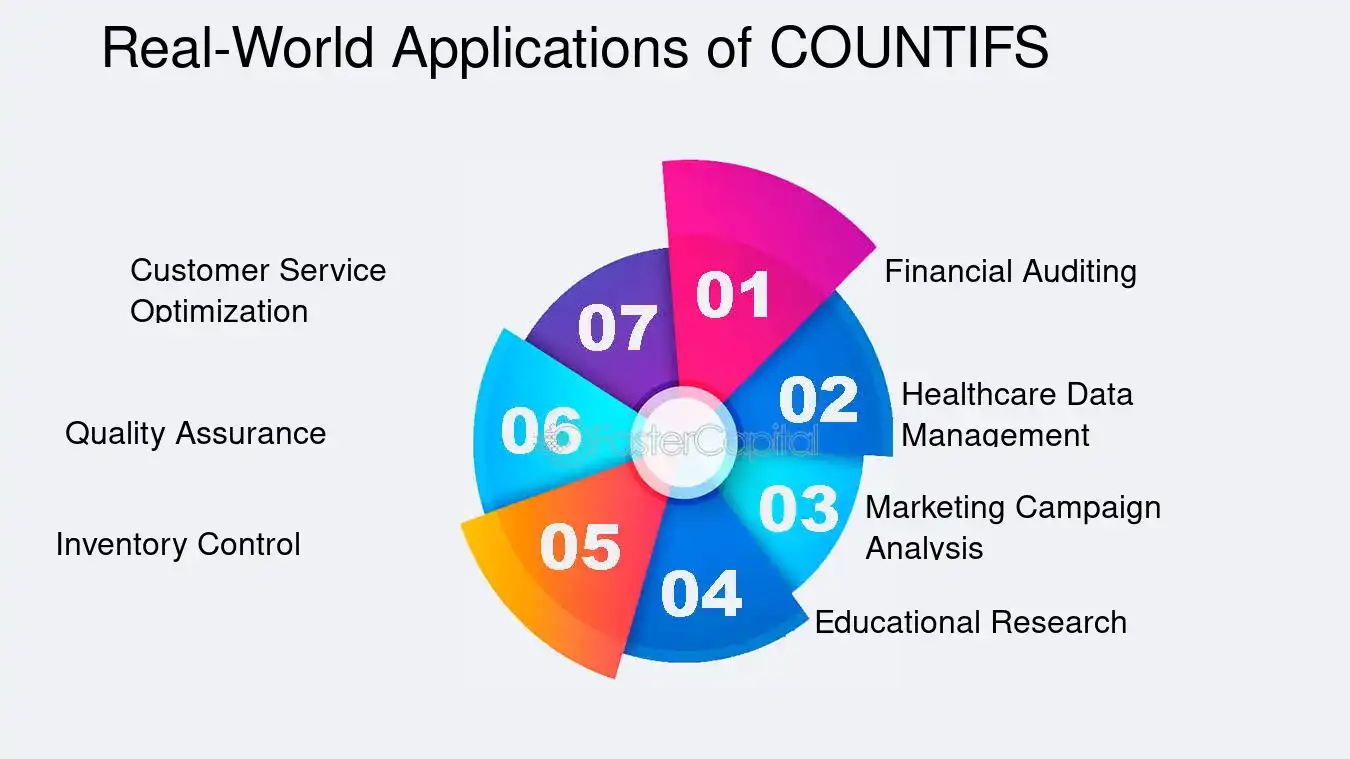
Here are some case studies that illustrate the practical utility of COUNTIFS in various scenarios:
1. Financial Auditing: In the financial sector, auditors use COUNTIFS to track transactions that fall outside of normal patterns. For example, a COUNTIFS formula can be set to count the number of transactions above a certain threshold within a specific time frame, helping to flag potential fraudulent activity.
2. Healthcare Data Management: Healthcare professionals utilize COUNTIFS to manage patient data effectively. They might count the number of patients with a specific diagnosis or track the frequency of a particular treatment, aiding in resource allocation and treatment efficacy studies.
3. marketing Campaign analysis: Marketing analysts often turn to COUNTIFS to evaluate the success of campaigns. By counting the number of responses or conversions that meet multiple criteria, such as demographic information and engagement level, they can fine-tune their strategies for better results.
4. Educational Research: Researchers in education use COUNTIFS to analyze test scores and attendance records. They can identify patterns in student performance, correlating them with attendance to draw insights into the impact of classroom engagement on academic success.
5. Inventory Control: In retail, COUNTIFS helps in managing inventory by counting items that are below restocking levels or identifying products that are nearing their expiration dates, ensuring efficient stock management.
6. quality assurance: Quality assurance teams apply COUNTIFS to monitor product defects. By categorizing defects based on type and frequency, they can pinpoint areas in the production process that require improvement.
7. customer service Optimization: Customer service departments use COUNTIFS to track the number of complaints or inquiries about specific issues. This data helps in prioritizing training and development for customer service representatives.
Example: A retail company might use COUNTIFS to analyze customer purchase patterns. Suppose they want to count the number of customers who purchased more than five items in a single transaction during a holiday sale. The COUNTIFS function can be set to count only those transactions that meet both criteria: the number of items (greater than five) and the transaction date (within the sale period). This insight can then inform future sales strategies and inventory planning.
Through these case studies, it becomes evident that COUNTIFS is not just a function; it's a gateway to deeper understanding and improved decision-making in data-driven environments. Its application breathes life into raw numbers, transforming them into actionable insights that propel organizations towards their goals.
Real World Applications of COUNTIFS - Data Cleaning: Data Cleaning with COUNTIFS: The First Step to Pristine Data Analysis
9. Next Steps in Data Analysis
Once you've mastered the basics of data cleaning with COUNTIFS, you're ready to take your data analysis to the next level. Beyond the realm of simple condition-based counting, there lies a vast landscape of analytical techniques that can transform your raw data into meaningful insights. These methods not only refine your data further but also unlock the potential for deeper understanding and more informed decision-making.
1. Advanced Conditional Analysis:
- SUMIFS, AVERAGEIFS, MAXIFS: Similar to COUNTIFS, these functions allow for conditional summing, averaging, and finding maximum values. For example, to calculate the average sales for a product only on days when the temperature was above 25°C, you could use:
$$ \text{AVERAGEIFS(SalesRange, TemperatureRange, ">25")} $$
2. Pivot Tables:
- Pivot tables provide a dynamic way to summarize, analyze, explore, and present your data. They are particularly useful for large datasets where you need to segment data into categories and subcategories. For instance, you could create a pivot table to quickly see the total sales by region and by product category.
3. Data Visualization:
- Charts and graphs can reveal trends and patterns that might be missed in tabular data. Tools like Excel's built-in charting capabilities or software like Tableau can help you visualize data effectively.
4. Statistical Analysis:
- Techniques such as regression analysis, hypothesis testing, and correlation can provide insights into the relationships between variables. For example, using regression analysis to determine if there's a significant relationship between advertising spend and sales revenue.
5. Data Modeling:
- Building models such as predictive models or simulations can help anticipate future trends based on historical data. This could involve using algorithms or machine learning techniques.
6. Integration with Other Data Sources:
- Combining your dataset with other relevant data can provide new insights. For example, integrating sales data with weather data to analyze the impact of weather on sales.
7. Automation with Macros and VBA:
- automating repetitive tasks with macros or using VBA (Visual Basic for Applications) to create custom functions can save time and reduce errors.
8. Using External data Analysis tools:
- Tools like R or Python offer advanced data analysis capabilities, including powerful libraries for statistical analysis, data manipulation, and visualization.
By expanding your toolkit beyond COUNTIFS, you can uncover a richer story told by your data. Each step forward in your data analysis journey not only enhances the clarity of the information but also the confidence in the decisions you make based on that data. Remember, the goal is not just to clean data but to bring it to life, allowing it to inform and guide your actions in the most impactful way.